
Key Takeaways
What you'll learn in this article
- Compare the original recording, exported edit, and TikTok preview before deciding where a color shift starts.
- Simplify the lighting before adjusting saturation: mixed window light and warm room lights can make a neutral reference look different across the frame.
- Locking white balance can reduce changes during a take, but it does not automatically make an inaccurate starting color correct.
- Use a short reference recording to check the product, then turn the viewer's actual color question into a focused next-post plan.
Key Takeaways
- Compare the original recording, exported edit, and TikTok preview before deciding where a color shift starts.
- Simplify the lighting before adjusting saturation: mixed window light and warm room lights can make a neutral reference look different across the frame.
- Locking white balance can reduce changes during a take, but it does not automatically make an inaccurate starting color correct.
- Use a short reference recording to check the product, then turn the viewer's actual color question into a focused next-post plan.
If product colors look wrong in your TikTok video, start with the original camera file under consistent lighting. Remove appearance-changing filters, make a short recording with a neutral reference beside the product, and compare it with your exported edit. Correct the stage where the mismatch begins rather than applying more saturation to every version.
This guide is for craft, clothing, beauty, and product-demo creators whose viewers need to distinguish real shades or finishes. The aim is a fair visual representation, not a promise that every viewer's screen will reproduce an exact color.
Find where the color changes
Keep the original recording. Choose one moment where the product is still and clearly visible, then compare that moment in three places:
- The original file in your phone's photo or video viewer.
- The exported file from your editor.
- The TikTok preview, or an existing published version if available.
Use the same screen for the first comparison. Otherwise, a change in display settings can become mixed up with a change in the file. Avoid comparing a bright phone outdoors with a dim laptop indoors and calling the difference an upload defect.
If the original already looks orange, blue, or green compared with the physical object under your reference lighting, investigate capture first. If the original looks reasonable but the export changes, inspect the edit and export workflow. If only one app or display looks different, investigate that viewing path before reshooting.
These are troubleshooting clues, not a diagnosis of TikTok's processing. A color mismatch alone does not establish that the platform altered your file in a particular way.
Simplify the light before changing camera settings
A common difficult setup puts the product beside a cool-looking window while a warm ceiling light illuminates the other side. A single overall adjustment may improve one side while making the other look worse.
Try this practical test:
- Leave the phone and product in fixed positions.
- Turn off decorative lights and nonessential room lamps using their normal controls.
- Record beside indirect window light, or use one suitable existing light source.
- Place a matte neutral gray reference card beside the product in the same light.
- Record a short clip, then inspect the saved file rather than only the camera preview.
A purpose-made neutral card is more useful than assuming a cream wall or glossy white box is neutral. If you do not own one, an uncolored reference can still reveal obvious shifts, but do not treat it as calibrated measurement.
Keep colored backgrounds from dominating the setup. A strongly colored surface close to the product may complicate your comparison. Start with a simple neutral background and add styling only after the reference shot looks usable.
Daylight changes, too. Record connected shade-comparison shots close together and recheck the reference when clouds or sunlight change substantially. You are building a repeatable filming setup, not proving that daylight always looks identical.
Check white balance without confusing it with exposure
White balance concerns the color cast of the scene. Exposure concerns its brightness. Turning brightness down will not necessarily fix an orange cast, and warming a clip will not restore detail that was recorded as featureless white.
Apple's current iPhone video-recording settings guide documents a Lock White Balance control under Settings, Camera, Record Video. Where available on your device, this is a useful control to test when color changes during a recording.
Compose the actual shot under the light you intend to use, allow the camera to settle, and record a test. Bring your hand or a second product into the frame as you would during the demonstration. Check whether the scene's color stays reasonably consistent.
The important limit: locking a setting is not the same as calibrating it. A stable orange cast is still an orange cast. If the starting color looks wrong, improve the lighting or use appropriate white-balance controls in a camera app you already understand.
On Android or another recording app, consult that specific app's documentation. Some offer manual white balance or presets; others do not. Do not assume an exposure or focus lock also locks white balance. Settings for the phone's native Camera app may not govern recording inside TikTok.
If product colors look wrong in your TikTok video only when you move from a wide shot to a close-up, also check whether you changed cameras, lights, or viewing angle. For reflective, metallic, or iridescent materials, angle can be part of the appearance. Show that variation rather than promising one flat shade tells the whole story.
Correct a modest cast—or reshoot the evidence shot
Work on a duplicate edit. First remove creative filters, beauty effects, and dramatic color presets that could change the product's appearance. Then compare the untreated clip with the physical object and reference under consistent conditions.
If your editor provides white-balance temperature and tint controls, make small adjustments while watching both the reference and the product. Do not correct only the background while ignoring skin, fabric, or packaging elsewhere in the frame.
Avoid using saturation as the first repair. A more vivid image is not necessarily a more accurate one. Likewise, do not change one product's color independently in a comparison to make it look closer to your preferred result.
Reshoot the short evidence shot when:
- Different parts of the product have incompatible color casts from mixed lighting.
- Bright areas have lost the texture viewers need to inspect.
- A filter materially changes the shade or finish you are reviewing.
- The important color shifts throughout the take and a simple correction does not hold.
You may be able to retain useful narration and replace only the affected close-up. Preserve a clear connection between the replacement shot and the product discussed; do not substitute footage of another shade or version.
For an export-only mismatch, test a short untreated clip through the same editor. Check the editor's documented handling of your source format, including HDR if relevant. Apple's guide documents HDR recording controls, but turning HDR off is not a universal TikTok color fix. Test your actual workflow before changing an entire batch.
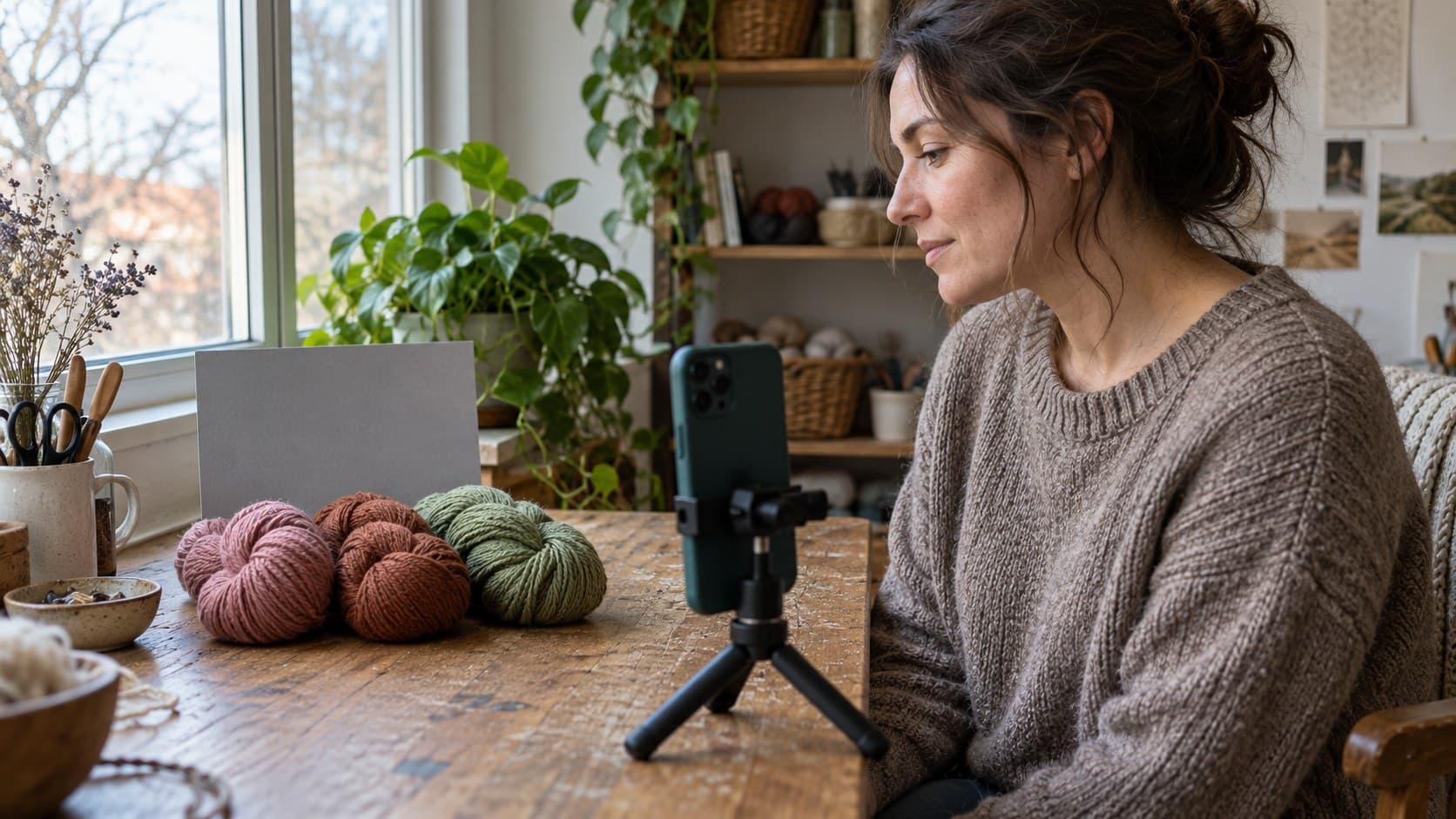
A hypothetical yarn-color demonstration
Imagine a craft creator whose viewers cannot tell whether a yarn is dusty rose or terracotta. This is an illustrative planning example, not a customer result.
The creator records both skeins together in indirect window light, with a neutral reference briefly visible at the beginning. They keep the same lighting and camera setup for the close-ups instead of filming each skein in a different room.
The opening names the decision: “Choosing between these two muted yarn shades? Here they are side by side in the same light.” The video shows the comparison long enough to inspect, then explains the maker's shade names without treating the viewer's display as a color standard.
A useful limitation would be: colors can appear different across lighting and screens; consult the seller's shade information or a physical sample when an exact match matters. That qualification strengthens the demonstration rather than canceling its usefulness.
Turn the color question into your next post
Once the recording passes the reference check, stop troubleshooting and write the content brief. Include the viewer's decision, the two details the camera must show, the lighting setup, and the limitation you need to explain.
InsightTok AI's Next Post Studio can help package that topic with hook options, a niche-relevant rising sound, and an account-specific posting-time recommendation. It does not calibrate cameras or certify product colors.
Use the TikTok hook generator to explore wording if needed. Reject hooks that promise a perfect shade match or blame TikTok for a change you have not isolated. For a demonstration that needs spoken explanation, prioritize intelligible narration over a soundtrack, and use audio you have permission to use for the post's purpose.
After publishing, read the questions rather than treating every comment as a request for another generic review. “Can you show those together?” suggests missing comparison footage. “Does it change in sunlight?” suggests a distinct lighting demonstration, clearly labeled as such.
TikTok's TikTok Studio documentation describes account and video analytics, including viewer activity times and engagement insights. Use the fields available to your account and compare similar demonstrations over the same observation period. Views alone cannot prove that a white-balance adjustment caused a performance change.
InsightTok AI can support the next planning decision with account-specific context. Keep the production check separate: clear color evidence makes the post more useful, while analytics helps you decide which viewer question deserves another post.
Your final color check
Before publishing, ask:
- Does the original recording represent the product reasonably under the stated lighting?
- Does the exported edit preserve that appearance without a misleading filter?
- Are all compared shades shown under comparable conditions?
- Have you avoided promising an exact match across every screen?
- Does the hook describe what the footage actually demonstrates?
When product colors look wrong in your TikTok video, a short controlled recording is more useful than an evening of random adjustments. Fix the earliest visible mismatch, save the setup, and finish one honest demonstration. When you are ready to turn it into a hook, sound, and posting-window brief, create your next-post plan.
InsightTok AI Team
Expert in TikTok growth strategies and social media analytics. Helping creators reach millions with data-driven insights and AI-powered recommendations.
Ready to Grow Your TikTok?
Get AI-powered analytics and content recommendations to boost your views and engagement.
Start Free TrialRelated Posts
Before-and-After TikTok Videos: Film a Fair, Clear Comparison
Film a believable transformation with matched reference shots, consistent conditions, and a reveal that clearly shows what changed.
Why Your TikTok Creator Income Arrives in Chaotic Waves: The Multi-Stream Payment Timing Framework
Unravel the mystery behind TikTok creator payment schedule timing and learn how to manage your cash flow, reconcile fragmented income, and forecast your financial future.
Why Your Voice Comments Section Is Becoming Your Biggest Moderation Nightmare: The Rich-Media Comment Management Framework to Automate Audio Screening, Prevent AI Voice-Clone Impersonation, Block Harassment in Comments, and Scale Community Without Reviewing Hours of Audio Daily
Navigate the challenges of TikTok voice comments moderation with our step-by-step guide. Leverage AI technology to automate the process and maintain a safe, engaging community.