
Key Takeaways
What you'll learn in this article
- A soft subject, a sudden framing jump, and motion blur are different problems; identify which one appears in your original recording.
- Compare the same scene in TikTok and the iPhone Camera app before changing your entire filming setup.
- For close-ups, increase the working distance or deliberately use supported macro controls rather than repeatedly pushing the phone closer.
- Lock focus only for a fixed-distance shot, then review the actual recording before dismantling your setup.
Key Takeaways
- A soft subject, a sudden framing jump, and motion blur are different problems; identify which one appears in your original recording.
- Compare the same scene in TikTok and the iPhone Camera app before changing your entire filming setup.
- For close-ups, increase the working distance or deliberately use supported macro controls rather than repeatedly pushing the phone closer.
- Lock focus only for a fixed-distance shot, then review the actual recording before dismantling your setup.
If your TikTok camera keeps refocusing, first stop moving the phone and subject toward each other, give the scene steady light, and record the same short action in the iPhone Camera app. If the subject becomes clear when you back up, your original position was too close for that camera to focus reliably. If the framing suddenly jumps, inspect automatic macro switching on a supported iPhone. These tests separate a filming problem from an app-specific one before you reshoot the whole video.
This guide is for creators filming small products, craft steps, food details, or hands-on tutorials. The goal is a readable demonstration, not a promise that sharper footage receives special treatment from TikTok.
Identify what is actually changing
Open the original clip, not just the edited preview. Replay the moment when the important detail disappears. Look for one of these patterns:
- The background becomes clear while your product turns soft. Focus may have moved away from your intended subject.
- The picture changes angle or framing abruptly as you move closer. A camera switch is one possibility, especially around macro distance on supported phones.
- The whole frame smears during movement but looks clear when everything stops. Investigate motion and lighting before treating it as autofocus hunting.
- The saved camera clip is clear, but a later version is soft. Compare the editing export and upload separately; a capture-stage focus fix may not address that problem.
More than one issue can occur in a single take. Choose the first visible failure and test that one. Changing distance, lighting, zoom, and recording apps simultaneously makes it difficult to learn which change helped.
Start with a clean lens and a supported phone. Use a stable stand if you have one. Position the light so your hand does not shade the subject during the key action. These are practical setup checks, not a diagnosis of damaged hardware.
Run a same-scene camera comparison
When your TikTok camera keeps refocusing, a comparison recording is more useful than guessing which setting to reset.
- Put the object on a table and choose one visible detail, such as a seam or connector edge.
- Keep the phone still and record the action in TikTok using your usual capture method.
- Open the iPhone Camera app, select Video, and record the same action from the same position.
- Compare the saved clips. Look at the detail during the action, not only the attractive opening frame.
- Repeat once from slightly farther away if both clips are soft.
Keep the camera choice, lighting, and framing as similar as the two apps allow. Controls vary, so this is a diagnostic comparison rather than a laboratory test.
If the Camera recording works and the TikTok recording does not, use the clear Camera file as your source for the next edit. That gives you a practical route forward without claiming that every version of TikTok has the same bug. If both fail, work on the physical setup before blaming the upload.
Apple documents the basic Video workflow and notes that available formats and camera controls depend on your iPhone model. Check the controls on your own device rather than copying a screenshot from another phone.
Back up before adding more zoom
A close-up does not require the phone to be almost touching the object. Every camera has a limit to how close it can focus. Moving closer than that limit can make the very detail you want to show less readable.
Keep the subject still and move the phone back gradually. Stop when the important edge or texture becomes clear. Then record the whole action at that distance.
Do not immediately fill the frame again with a large digital crop. First ask whether the viewer can understand the detail in a slightly wider shot. A small amount of surrounding context can make a hand movement easier to follow.
If the detail is still too small, consider a separate macro take on a supported device. Treat it as another shot with its own setup, not a continuous push from a room-wide view into a tiny mechanism.
Control macro switching deliberately
Apple's macro photo and video guide says supported iPhones automatically switch to the Ultra Wide camera for close-up capture. It also explains how the onscreen macro control lets you turn automatic switching off or back on.
The important caveat: disabling automatic switching does not make the current camera focus closer. Apple specifically suggests backing up or selecting .5x if the image becomes blurry.
Choose the approach that preserves the detail:
- Stay farther back with a consistent view when that distance is sufficient.
- Use macro deliberately when the tiny detail genuinely requires it.
- Split a wide introduction and close-up demonstration into separate takes if moving between them produces a distracting transition.
Do not assume these Camera-app controls are available in TikTok's recorder. Model, operating-system version, and recording app matter. Test the saved clip after changing a control.
Use focus lock for a fixed distance, not a moving target
For a tabletop demonstration, the object often stays in one place while a hand enters the frame. A locked focus position can help you keep attention on that working area instead of an approaching hand or background.
Apple describes touching and holding the focus area until AE/AF Lock appears in its camera setup guide. On your recording setup, confirm that the lock is available and active before relying on it.
Rehearse the action at the intended distance. Set focus on the detail, engage the available lock, and record a short test. Watch the moment your hand crosses the frame.
A focus lock is not subject tracking. If you lift the object toward the phone, it can leave the focused distance and become soft. Either keep the demonstration in the original working area or record another take at the new distance. Unlock and refocus when you change the setup.
Do not treat any single setting as permanent. A lock that helps with a stationary clasp may be the wrong choice for someone walking toward the camera.
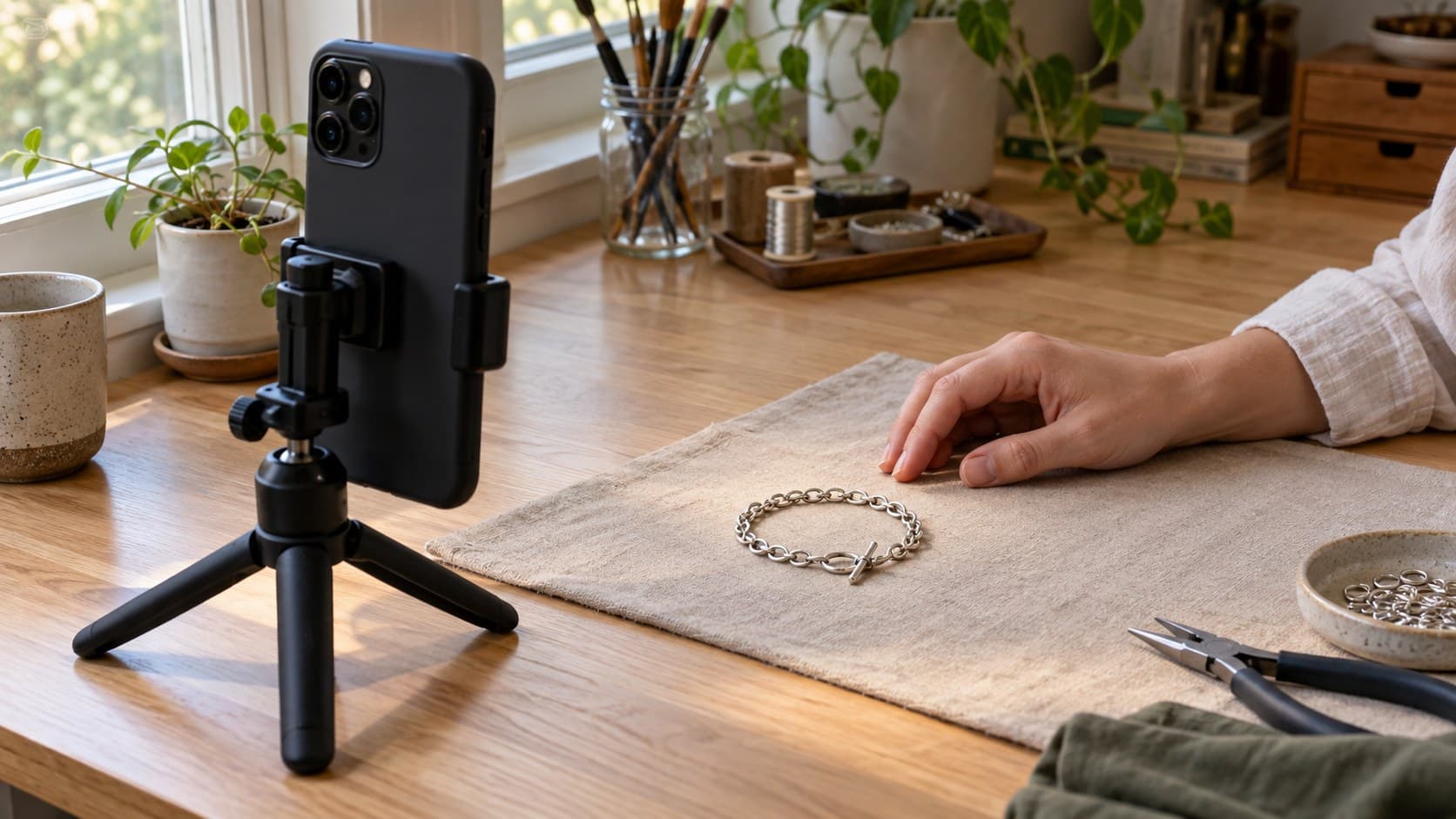
A hypothetical craft-video repair
Imagine a jewelry creator demonstrating how to close a small clasp. This is an illustrative workflow, not a customer result.
The original take begins with the bracelet on a table, then brings it toward the lens. The clasp turns soft just as the creator explains the essential step.
Instead of repeating that movement, the creator could:
- Record a wider shot that establishes the bracelet and the task.
- Set up a separate close-up with the clasp already at a distance where it looks clear.
- Keep the clasp in that working area while showing the closing action.
- Record a final stationary view that confirms the clasp is closed.
The edit now connects context, action, and result without depending on a difficult continuous focus change. The improvement is visible instruction; no invented view increase is needed to justify it.
Decide whether to salvage or reshoot
If the TikTok camera keeps refocusing during the only frame that proves your point, reshoot that detail when possible. An overlay, sharpening effect, or fast transition cannot reliably recover information that was never captured clearly.
You may not need to redo the introduction or narration. Replace the failed demonstration with a clear insert, then adjust the voiceover so it matches what the viewer sees.
For a comparison or product test, be honest about separate takes. Do not edit a repeated demonstration to look like uninterrupted evidence of a result. Keep the original footage when continuity matters.
If the subject cannot be recreated, narrow the claim to what the existing footage actually shows. A less ambitious but verifiable explanation is better than a confident claim supported by a blur.
Turn the clear detail into your next-post plan
Start with the useful thing the viewer can now see. Write a hook that names that task rather than promising a dramatic transformation your footage cannot demonstrate. The free hook generator can help explore wording; choose a line the finished shot supports.
InsightTok AI helps at the planning stage through Next Post Studio, bringing together hook suggestions, a niche-relevant rising sound, and a suggested posting window. Use that plan to choose what to film next. It does not repair focus or replace a camera check.
Before posting, replay the export at phone size. Confirm that the opening names the task, the important action stays clear, and captions do not hide the detail you worked to capture. Save a short setup note describing camera choice, distance, lighting, and whether you used a lock or macro control.
The next session should start with that tested setup, not another round of guessing. When you want help connecting a filmable idea to a hook, sound, and posting window, create an InsightTok AI account.
InsightTok AI Team
Expert in TikTok growth strategies and social media analytics. Helping creators reach millions with data-driven insights and AI-powered recommendations.
Ready to Grow Your TikTok?
Get AI-powered analytics and content recommendations to boost your views and engagement.
Start Free TrialRelated Posts
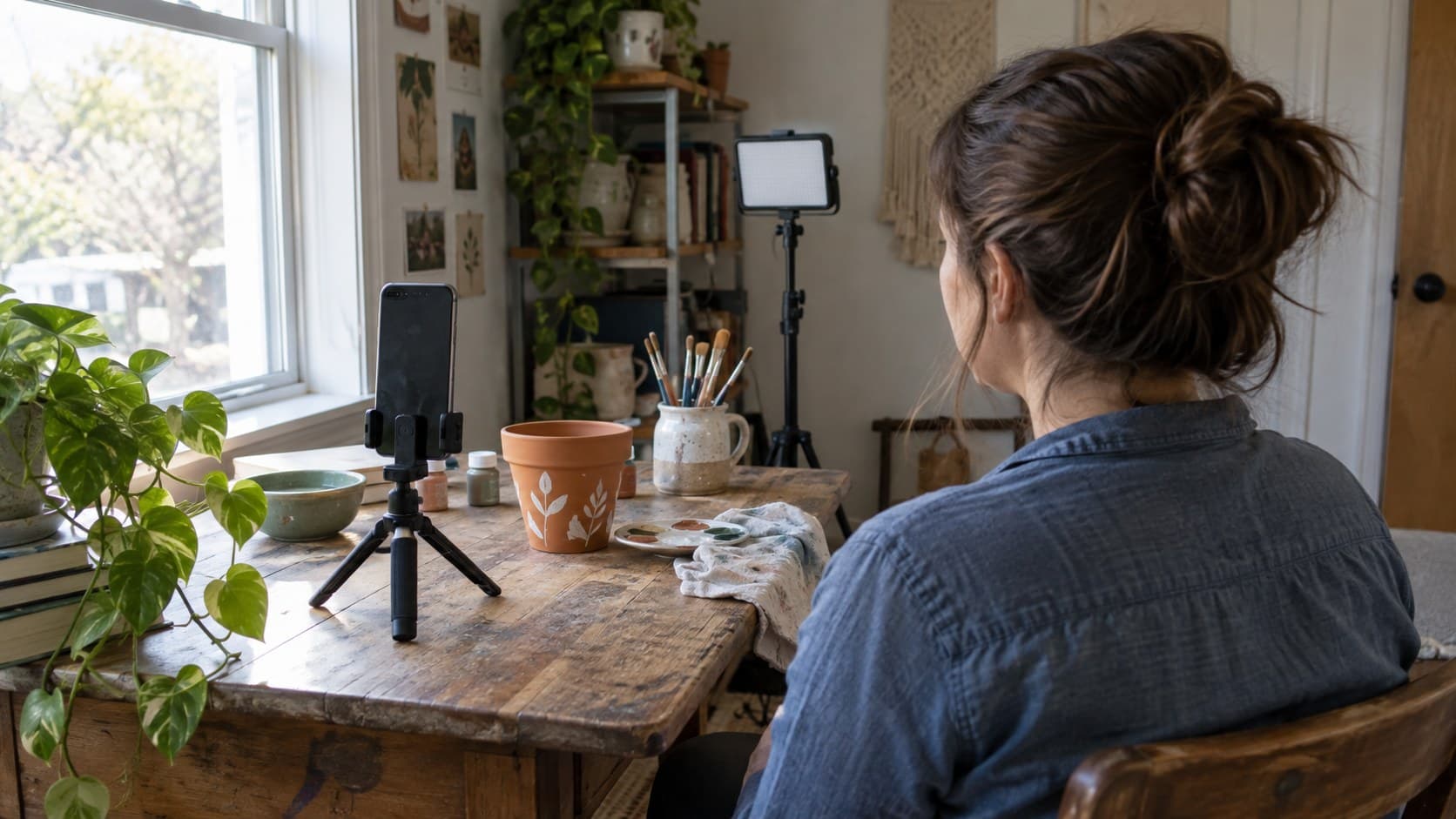
Flickering Lights in Your TikTok Video? Fix the Recording Setup First
A practical lighting and camera test for indoor creators: locate the flicker, check phone recording settings, and save a clean setup before filming your next tutorial.
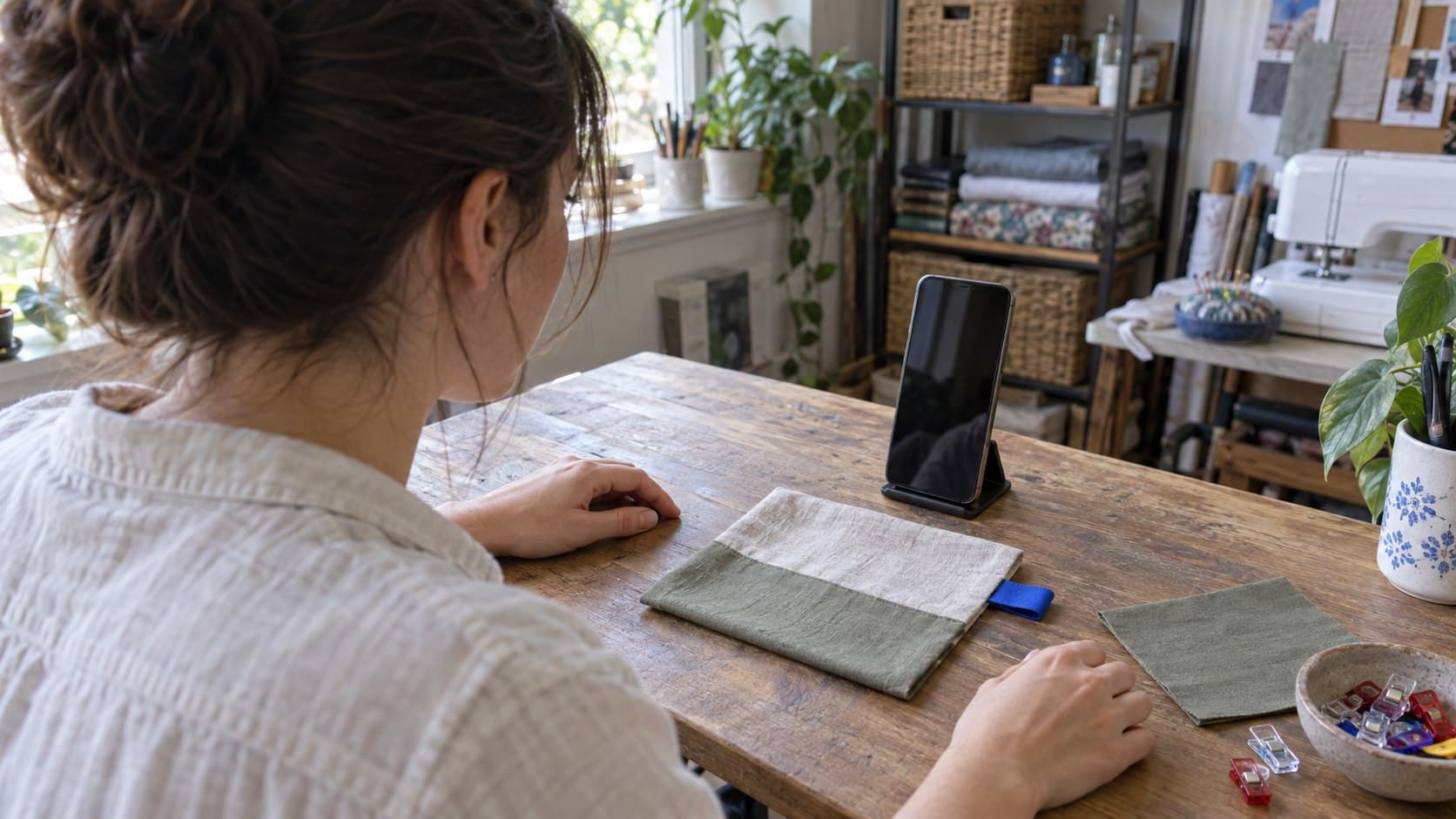
How to Fix a Mirrored TikTok Video Before Posting a Tutorial
A practical orientation check for tutorial creators: fix reversed footage, keep captions readable, and make left-right instructions clear before publishing.
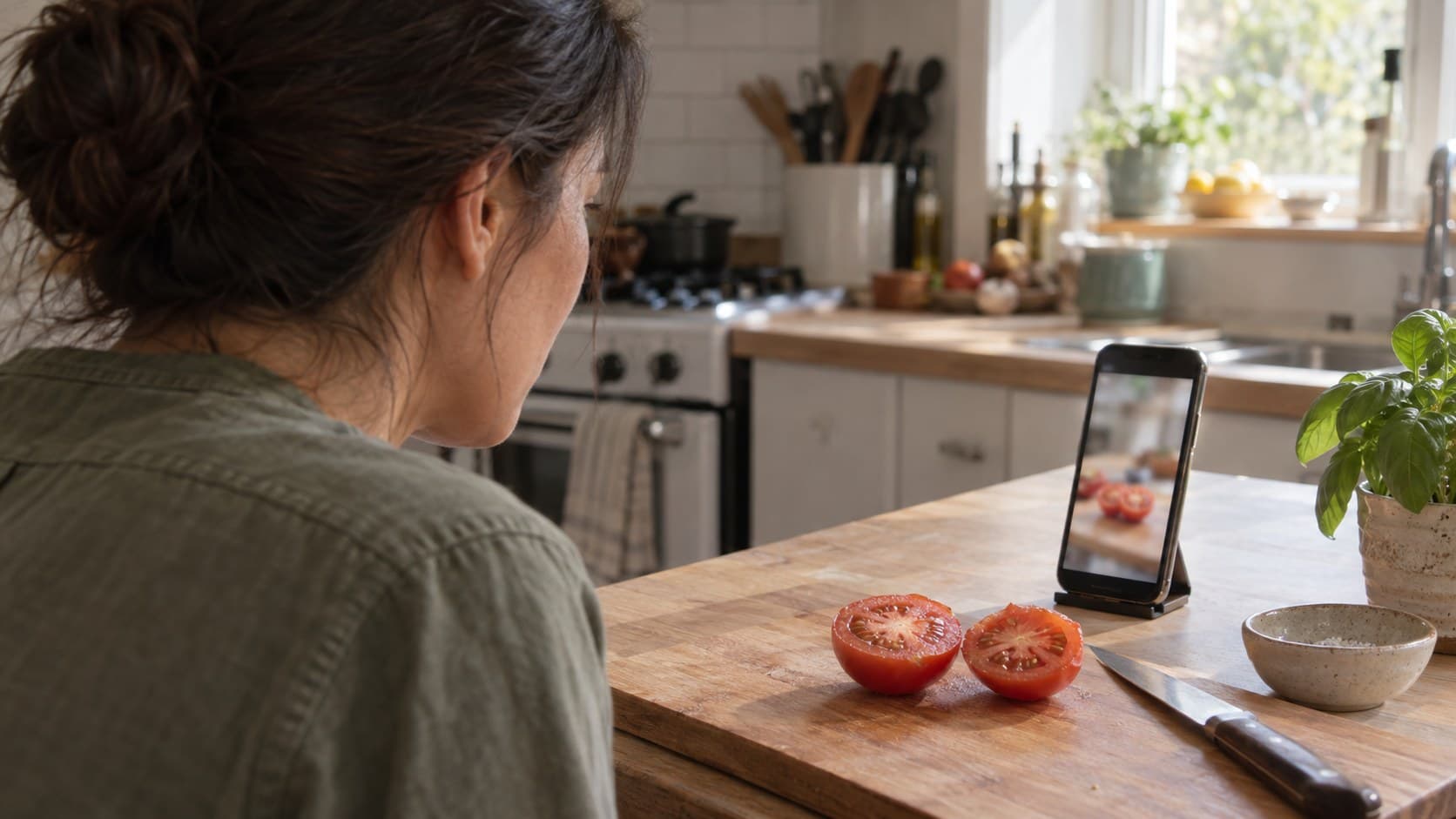
TikTok Captions Covering Your Video? Fix the Layout Before Posting
A practical caption-layout workflow for tutorial creators: keep essential actions visible, correct transcripts, and preview the next upload at phone size.