
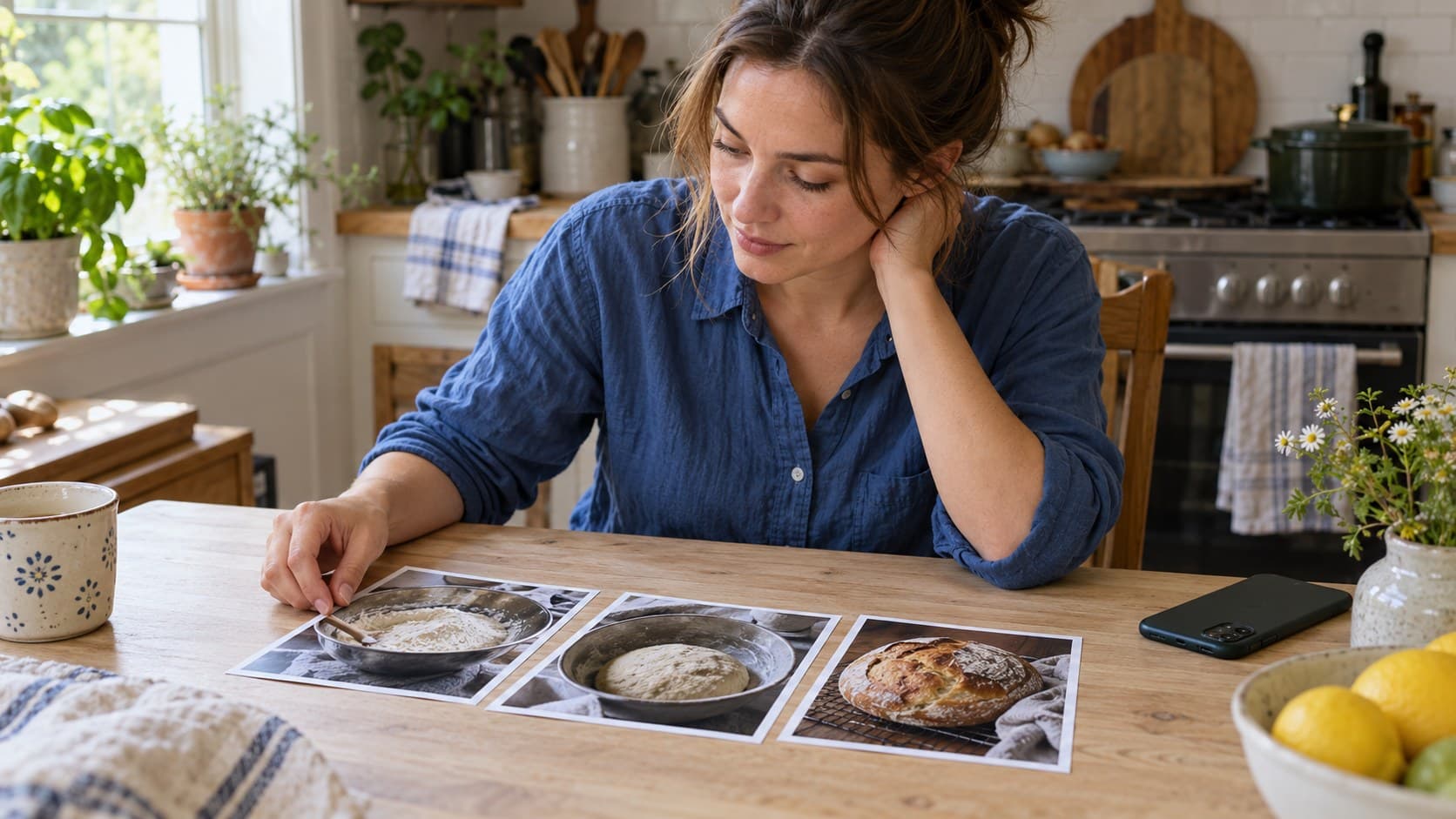
Key Takeaways
What you'll learn in this article
- Add a separate description to each photo so a screen-reader user can understand the information that slide contributes.
- TikTok currently allows up to 300 characters of alt text per photo, including on photo posts you have already published.
- Describe the action, relevant visual details, and essential words in the image instead of stuffing the field with keywords.
- Review descriptions after your final slide order is set; use missing visual explanations to improve your next tutorial too.
Key Takeaways
- Add a separate description to each photo so a screen-reader user can understand the information that slide contributes.
- TikTok currently allows up to 300 characters of alt text per photo, including on photo posts you have already published.
- Describe the action, relevant visual details, and essential words in the image instead of stuffing the field with keywords.
- Review descriptions after your final slide order is set; use missing visual explanations to improve your next tutorial too.
TikTok photo alt text is an image description that screen readers can read aloud. To add it, create a photo post, go to the post screen, open More options, and choose Add alternative text. Write a description beside each photo, then tap Done. The useful part is not simply finding the field: it is telling someone what each image teaches without making them guess from the post caption.
This guide focuses on step-by-step photo tutorials: recipes, craft projects, product demonstrations, and other sequences where visual differences carry the lesson. The writing checks below are practical editorial guidance, not a promise of extra reach or a hidden ranking technique.
Where to add descriptions before and after posting
TikTok's current accessibility instructions say you can enter up to 300 characters for each photo description. They also document editing descriptions after publication.
For a new photo post:
- Upload or create your photos in TikTok.
- Tap Next to reach the post screen.
- Open More options, then Add alternative text.
- Enter the relevant description next to each photo.
- Tap Done and finish reviewing your post before publishing.
For a published photo post:
- Open the post you want to improve.
- Tap the More options button beside the post.
- Choose Edit post, then Add alternative text.
- Enter or revise the descriptions and tap Done.
These are the paths in TikTok's current documentation, not a guarantee that every app version displays identical controls. If yours differs, check that you are working with a photo post rather than a video made from still images, update the app if an update is available, and consult the linked help page. Do not assume that writing a longer post caption fills the missing image-description field.
Give each text layer a different job
A photo tutorial can have three kinds of writing. They should support each other rather than repeat the same promotional sentence everywhere.
The post caption gives shared context: what you are making, who the tutorial is for, and any important limitations. An on-image heading can help a sighted viewer scan the sequence. Alt text describes the information in that particular image for someone accessing it through a screen reader.
For example, a post caption might explain that a bread tutorial shows how to recognize dough readiness. One slide might display the words “Look for expansion.” Its description should explain what expansion looks like in that image, not merely repeat “Bread tips for beginners.”
When essential instructions appear inside a photograph or graphic, include their meaning in the description. Avoid assuming that someone can already read the pixels. Equally, do not fill every description with the complete recipe if that information belongs in the shared explanation. Aim for a sequence that remains understandable when its individual visual contributions are described aloud.
A practical formula for TikTok photo alt text
Start with the subject and action, then add the visual detail that matters to the lesson. Include essential image text where needed. Stop when the image's purpose is clear.
A useful drafting pattern is:
- Subject: what is pictured?
- Action or state: what is happening, or what stage has it reached?
- Relevant evidence: what visible detail helps the reader understand the instruction?
“Dough in a bowl” identifies the subject but leaves out the teaching point. “Dough has risen above a tape marker on the glass bowl, with small bubbles visible along the sides” gives the reader useful evidence.
Describe what the image actually shows. Do not turn a visual observation into an unsupported conclusion: a photograph of dough does not prove its exact temperature, fermentation time, or readiness for every recipe. Put measured facts in the tutorial when you have them, and distinguish those facts from visible cues.
Spend the character budget on meaning
The limit is a ceiling, not a target. A straightforward image may need only one short sentence. A busy comparison might require two concise sentences or, better, a clearer image.
Remove generic filler before removing the important detail. “An amazing beautiful photograph showing” spends space without explaining the lesson. So do unrelated hashtags, repeated calls to follow, and strings of search terms.
Avoid vague relationships such as “this looks better” or “do the other one.” Name the relevant object, location, or change. If left and right matter, say what appears on each side rather than expecting the listener to infer it.
Worked example: a three-photo bread tutorial
This is a hypothetical drafting example, not a creator case study or a tested performance result. Imagine a post teaching beginners to notice changes during a bread-making process.
Photo one: the starting point
Suppose the image shows rough, newly mixed dough in a glass bowl, with a tape marker aligned to its initial height.
Possible description: “Rough dough sits in a glass bowl. A strip of tape on the outside marks its starting height.”
This gives the next image a reference point. Describing the countertop color would add little unless that detail somehow mattered to the instruction.
Photo two: the visible change
Suppose the second image shows expanded dough above the same marker, with bubbles along the bowl's sides.
Possible description: “The dough now rises above the tape marker on the bowl. Small bubbles are visible against the glass.”
The description preserves continuity without inventing elapsed time or claiming that one visual cue is a universal readiness test. If your recipe requires other checks, explain them separately.
Photo three: the finished result
Suppose the final image shows a sliced loaf whose interior is the point of the photograph.
Possible description: “A sliced loaf rests on a board, showing an open crumb with uneven air pockets beneath a browned crust.”
Do not reuse this wording for a different photograph. If your loaf is unsliced, the interior is not visible and should not be described as though it is. Alt text should follow the actual final images, not an earlier shot list.
Run an image-by-image review before publishing
Set your slide order first. Then read each description while checking its corresponding image. A reordered sequence can leave descriptions technically accurate but confusing as a lesson.
Use this review:
- Can someone identify what is pictured without reading another slide first?
- Does the description explain the visual detail that makes this slide useful?
- Are essential on-image instructions represented?
- Have you removed guesses, promotional filler, and unnecessary repetition?
- Does each description match the final crop rather than the uncropped original?
Next, read the descriptions in order without looking at the images. This is a writing check, not a substitute for testing with a screen reader or listening to accessibility feedback. Notice where the lesson jumps from one stage to another without explanation. Sometimes the fix is better wording; sometimes the tutorial needs another image.
If you can review the published post using a screen reader, check the actual experience rather than assuming the writing preview is enough. Invite specific feedback and correct problems when reported. Avoid calling a whole post fully accessible solely because one field has been completed.
Turn the review into a better next-post brief
Writing TikTok photo alt text can reveal where your visual teaching is too vague. If describing a slide requires a long explanation that the image does not support, you may need a closer shot, a simpler comparison, or a separate demonstration.
Save one concrete follow-up question. In the bread example, that could be: “What does dough expansion look like from the side?” A short demonstration video could answer it more clearly than another broad recipe roundup.
For that video follow-up, InsightTok AI can help turn the question into a next-post plan through Next Post Studio, which brings together niche-relevant sound suggestions, hooks, and a personalized posting window. This is a planning aid, not an alt-text generator or an accessibility audit. Review every suggestion against the lesson you actually intend to teach.
If you need opening options, use the hook generator to explore ways to name the specific problem. Keep the hook consistent with what the finished demonstration shows. A sound should support the lesson rather than carry information that is missing elsewhere.
Your final publishing checklist
Before posting, confirm that every photo has an image-specific description, essential visual instructions are represented, and no description exceeds the app's limit. Recheck the order and crop. Keep your shared context in the post caption and your descriptions focused on the individual photos.
You do not need to rewrite an entire archive today. Start with the next tutorial you are preparing, or improve one existing photo post that people still use. Clear descriptions serve the reader directly; they do not need a promised algorithm benefit to be worthwhile.
When you are ready to turn the next teaching question into a focused video plan, try InsightTok AI.
InsightTok AI Team
Expert in TikTok growth strategies and social media analytics. Helping creators reach millions with data-driven insights and AI-powered recommendations.
Ready to Grow Your TikTok?
Get AI-powered analytics and content recommendations to boost your views and engagement.
Start Free TrialRelated Posts
How to Show Fabric Texture on TikTok With a Phone
Show fabric texture on TikTok with clear close-ups, gentle movement, and honest drape shots that answer your viewers’ clothing questions.
Why Your TikTok Creator Card Sits Unused While You Wait 30 Days for Platform Payouts: The Creator Business Banking Framework
Learn how to leverage the TikTok Creator Card and InsightTok AI for improved financial management and faster creator payouts.
How to Film Steam for TikTok Food Videos With a Phone
Film steam for TikTok food videos with simple phone framing, side-backlight, a dark background, and a safe recording plan that keeps the recipe useful.