
Key Takeaways
What you'll learn in this article
- Animate one clear change: an object enters, pieces assemble, or a useful arrangement appears.
- Keep the phone, background, lighting, and camera settings consistent between photos.
- Move the subject a small amount, remove your hands, take a photo, and preview the sequence before continuing.
- Plan the opening promise and final reveal before spending time capturing frames.
- Treat animation as a storytelling choice, not a shortcut to guaranteed reach.
Key Takeaways
- Animate one clear change: an object enters, pieces assemble, or a useful arrangement appears.
- Keep the phone, background, lighting, and camera settings consistent between photos.
- Move the subject a small amount, remove your hands, take a photo, and preview the sequence before continuing.
- Plan the opening promise and final reveal before spending time capturing frames.
- Treat animation as a storytelling choice, not a shortcut to guaranteed reach.
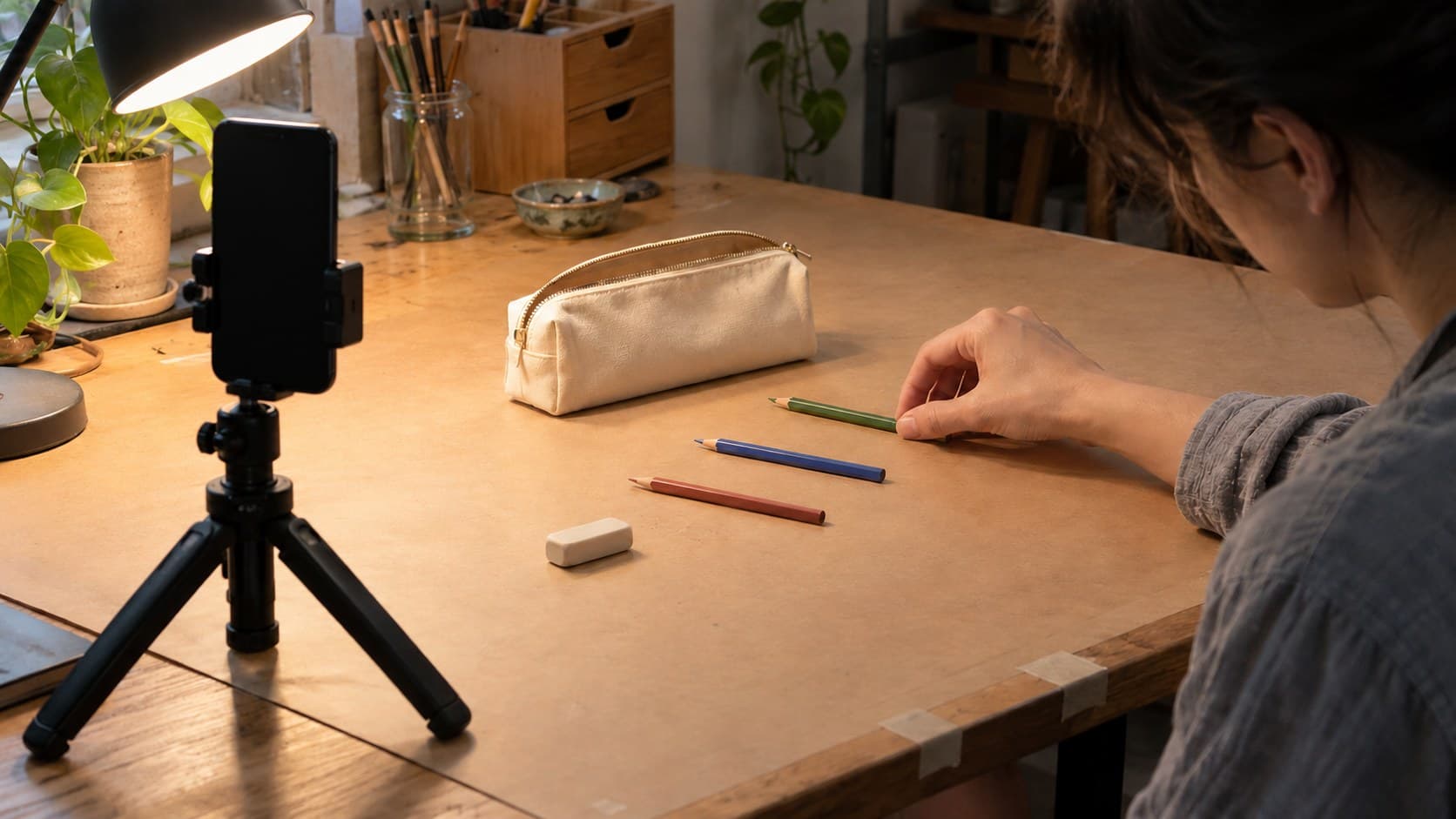
To make TikTok stop-motion videos, secure your phone, photograph an object, move it slightly, and photograph it again until the sequence is complete. Assemble those still images in a stop-motion editor, adjust playback speed, and export a vertical video. Start with one object and one movement rather than an elaborate scene you cannot finish consistently.
The important difference from time-lapse is control. Time-lapse records a process unfolding over time; stop motion lets you stage each individual position. A pencil can appear to travel across a desk without a visible hand, or separate craft supplies can assemble into a tidy kit. That illusion is useful only if the viewer understands what the post is showing.
Choose an animation that answers a niche question
Before opening the camera, finish this sentence: “After watching, someone interested in my niche will understand or notice ___.”
For a stationery creator, the answer might be how a compact pencil case accommodates a small sketching kit. For a craft creator, it might be which components belong in a beginner project. For a home organizer, it could be the arrangement that makes a drawer usable.
Pick one motion that supports that answer:
- Objects enter the frame and settle into their intended positions.
- Parts assemble into a finished arrangement.
- One object travels between two meaningful locations.
- A messy layout changes into a clearly organized one.
Avoid combining every effect in your first attempt. Multiple moving objects create more opportunities for accidental jumps, and animation alone does not explain why an arrangement is useful.
Also decide whether this is a reveal or an instruction. A kit assembling itself is a reveal. Teaching someone how to thread a needle requires a visible demonstration of that action. Do not let an attractive effect replace the step your hook promised to explain.
Build a scene that stays the same between photos
Consistency matters more than expensive equipment. Use a secure phone mount and a stable work surface. If touching the screen moves the phone, use a compatible remote shutter or your capture app's timer, where available. Test the actual setup rather than assuming an accessory works with every app.
Frame vertically from the beginning. Leave room for the full movement and the finished arrangement, not just the first object. Keep important details away from the edges so you have flexibility for captions and the publishing interface.
Mark the tripod position and background edges with removable tape outside the visible frame. Keep cables out of your working path. A small bump halfway through can shift the entire scene, not just the object you meant to animate.
Control light and automatic adjustments
The official Life Lapse phone stop-motion tutorial recommends a stable camera, locked exposure and white balance, and controlled lighting. Its guidance addresses the common problem of brightness or color changing between individual photos.
Apply those principles in whichever capture app you choose. Lock focus, exposure, and white balance if your app and device offer those controls. Focus on the plane where the object will move, and inspect a test image for detail before locking it.
Use a consistent artificial light source and limit changing daylight. Check a short sequence for pulsing brightness; a lamp is not automatically suitable merely because it looks steady to your eyes. Keep your body in the same position when triggering each photo so you do not repeatedly cast a shadow across the set.
Set a small frame budget before you start
A frame budget prevents a simple experiment from turning into an unfinished afternoon. The basic relationship is straightforward: the number of photos divided by playback frames per second determines animation duration, before additional holds or repeated frames.
For example, 48 photos played at 12 frames per second create four seconds of animation. This is a planning example, not a recommended TikTok length or a platform requirement. You can add a readable opening or final hold if the idea needs it.
Choose the playback speed in your editor and make a miniature test before committing. Larger movements between photos produce bigger jumps. Smaller, consistent movements can look smoother, but require more frames to travel the same distance.
Do not assume a higher exported video frame rate creates more captured detail. An editor may repeat existing images to fill the output. The object positions you photograph are what define the motion.
For a first project, choose a short path and an easily resettable subject. Avoid melting food, unstable stacks, or anything whose appearance changes while you work.
Capture in short sections and inspect the movement
Use this repeatable capture loop:
- Photograph the starting scene, including an empty frame if the subject will enter from outside it.
- Move the object a small amount along its planned path.
- Remove your hands, tools, and their shadows from the frame.
- Wait for the setup to settle, then take the next photo.
- Preview a short section before continuing.
If your editor offers onion skinning or a ghost overlay, use it to compare the current view with the previous image. Life Lapse's tutorial demonstrates this overlay as a guide to object movement. It can also help you notice that the background shifted accidentally.
Inspect playback, not just individual photos. A frame can look fine alone while producing a distracting jump in sequence. If one photo contains a hand, replace that frame while you can still recreate the position. If the entire scene moved, restore alignment or restart the short section rather than building more footage on top of the mistake.
Keep a simple position reference outside the crop when objects need to meet at an exact endpoint. Do not move the phone to check your work; use the editor's preview while the mount stays fixed.
Fix the cause instead of adding effects
When TikTok stop-motion videos look rough, separate intentional stepped motion from accidental inconsistency.
The background jumps: Check the mount, table, backdrop, and shutter action. Adding stabilization later may crop the image or distort the scene; restoring a steady capture setup is the cleaner solution.
Brightness or color pulses: Check automatic exposure and white balance, moving shadows, daylight changes, and the light source itself. Record another short test after each adjustment.
The object speeds up unexpectedly: Compare the distance traveled between photos. Uneven spacing changes perceived speed even when playback timing stays constant. Deliberate acceleration is fine; accidental spacing is a capture issue.
The movement looks clear but the idea is confusing: Simplify the scene. Remove props that do not explain the transformation, or add a brief opening line naming the intended result.
The ending flashes past: Hold the final arrangement long enough to inspect it. Do not sacrifice the payoff just to make the clip loop seamlessly.
Package the animation around a truthful promise
Consider this hypothetical stationery post: several drawing supplies slide into a small travel case, one at a time, followed by a real-time shot of the case closing.
A useful hook is “What actually fits in my small sketching case.” The animation shows the inventory; the closing shot checks the practical claim. “Pack your bag instantly” would turn a staged visual effect into a misleading promise if presented literally.
Keep product relationships and applicable disclosures clear when a post is promotional. Use music you have permission to use for the intended purpose. Choose the sound after the visual story works; do not speed through the useful reveal solely to land on a beat.
You can use the hook generator to explore opening lines, but reject any version that promises evidence your footage does not contain.
Turn the finished experiment into a next-post decision
InsightTok AI's Next Post Studio brings together niche-relevant sound suggestions, hook options, and an account-informed posting window. Use those inputs to package a useful animation, not to replace the decision about what your audience needs to see.
For the sketching-case example, the creative brief is already concrete: show the inventory, animate the arrangement, and prove the case closes. A sound suggestion should fit that sequence. A hook should name the packing question. A posting-window suggestion is a planning input, not a guarantee of distribution.
After publishing, read the questions as well as the response to the visual effect. “Which pencil fits?” suggests a practical follow-up. “How did you make it move?” suggests a behind-the-scenes capture lesson. Those are different next posts, and neither requires animating the same scene again with more objects.
If you compare this format with another post, use similar subjects and observation periods. One result cannot establish that animation, sound, or timing alone caused the difference. Keep notes on what you changed and whether the production effort was worthwhile for the question you answered.
Your final export check
Before publishing TikTok stop-motion videos, watch the exported file on a phone rather than relying only on the editor preview. Check that the opening identifies the idea, the movement stays readable, no accidental hands appear, and the final result remains visible. Confirm that captions do not cover the important objects and that the post makes sense with the sound muted.
Save the capture project and exported file before dismantling the scene. Then write one specific follow-up question while the lesson is fresh. If you want help turning that question into a hook, sound, and posting plan, try InsightTok AI.
InsightTok AI Team
Expert in TikTok growth strategies and social media analytics. Helping creators reach millions with data-driven insights and AI-powered recommendations.
Ready to Grow Your TikTok?
Get AI-powered analytics and content recommendations to boost your views and engagement.
Start Free TrialRelated Posts
Why Your TikTok Revenue Collapses During Tax Season: The Creator Tax Deduction & Quarterly Payment Planning Framework
Many TikTok creators lose a large portion of their earnings to taxes. Discover strategies to claim overlooked expenses and optimize your earnings.
Product Colors Look Wrong in Your TikTok Video? Fix White Balance First
Fix inaccurate product colors with a simple lighting, white-balance, and export check before filming your next TikTok demonstration.
Before-and-After TikTok Videos: Film a Fair, Clear Comparison
Film a believable transformation with matched reference shots, consistent conditions, and a reveal that clearly shows what changed.